Volupe support desk

Get Simcenter support from a Volupe engineer

Email your question and your assigned dedicated support engineer takes care of your enquiry. We reply within one day, and licensing issues are prioritised.

support@volupe.com
Hours
Mon–Fri 08:30–16:30 CET
Reply
Within one day

Email any time.

Meet the nine engineers


Find the right route

What do you need help with?

Choose the closest match. Each email link opens a new message with a subject line and a short outline to fill in, so your engineer sees at once what kind of case it is.

  • Unexpected results, meshing or solver problems

    Describe what you simulate and what looks wrong. Include pictures of the result and any error message.

    Email this case about unexpected results
  • A licence that will not start

    Prioritised

    We prioritise licensing issues so you can use the software you have purchased. Include your set-up, operating system and the licence error. A Teams call may help.

    Email this case about a licence
  • Downloads, installation or your Siemens account

    Software downloads and licence files are in Siemens Support Center. We can offer guidance, but we cannot access Support Center accounts, settings or its underlying systems. You may need to add information to your account.

    Siemens Support Center (opens in a new tab)
  • “Can the software do this?”

    Explain the application, the background and your engineering goal. A suitable part of a workflow may be enough to solve the problem.

    Email this case about capabilities
  • Theory and model questions

    Include the context and what you need to understand. We can help you find or interpret the documentation, but we do not necessarily have access to the publications in its bibliography.

    Email this case about theory
  • Java macros and automation

    Volupe does not officially support Java, but send your macro question and we review it and offer pointers. Simulation operations may offer another route; our Java macro course covers the basics.

    Email this case about a Java macro

Not sure which fits? Email support@volupe.com anyway; your engineer takes it from there.

Support guidelines

How your support case works

Start a support case by email. Your assigned dedicated support engineer takes care of your enquiry.

  1. Open a case

    Email support@volupe.com with your simulation goal, the issue and your questions.

  2. Review and follow-up

    Your engineer confirms receipt and reviews the case. We may ask for more information or arrange a Teams call to work through the issue.

  3. Resolve and close

    We close the case when you consider your questions answered and the issue resolved.

  4. Share your feedback

    After the case, you receive a short support survey. It takes about a minute.

What to include in your support email

  • What you are simulating, and the purpose of the simulation.
  • The problem and the questions you want answered. Use a list if you have several.
  • Pictures or plots, preferably directly in the email.
  • Any error messages you receive.

Sharing simulation files and NDAs

We often need the simulation file to understand and debug a case. If it is about 15 MB or smaller, attach it to your email. For larger files, we create a shared SharePoint folder where you can upload it.

If you need an NDA before sharing files, send it to us for review and confirmation first.

From our support guidelines

An example of a useful support email

It explains the simulation goal, the sender’s experience and the unexpected result, then asks a clear question, with a screenshot that helps us understand the problem.

  1. Experience Tells us where to start the explanation.
  2. Goal, expectation and a picture Shows what “wrong” means in this case.
  3. A clear question Tells us exactly what you want to know.
Tosupport@volupe.comSubjectDivergence in pressure drop calculation

Dear Volupe,

I work at Company X and am relatively new to Simcenter STAR-⁠CCM+; my experience so far amounts to an introductory course.(note 1)

I am performing a pressure drop calculation in a short straight pipe, and when I look at the result, the scene makes no sense. It is not at all what I would expect when using the polyhedral mesher. See the picture below.(note 2)
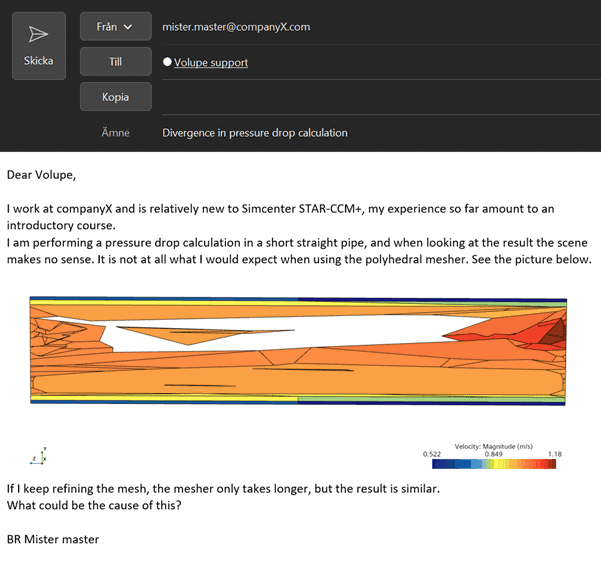
If I keep refining the mesh, the mesher only takes longer, but the result is similar. What could be the cause of this?(note 3)

Best regards,
A. Engineer

An example from Volupe’s support guidelines, lightly edited.

What it was: the automated mesh operation did not include a surface remesher. The volume mesh was therefore based on the input surface tessellation, which explained why further refinement did not increase the cell count.

Scroll to Top